
Apply for a getapi.pro API Key
This guide follows the getapi.pro console flow. API Keys are not shown only once: after creation, you can still copy and manage them from the API Keys list.
Quick links
Before you start
- Finish signing up and signing in to getapi.pro. If you have not done that yet, read the getapi.pro sign-up and login guide first.
- Confirm that you can open the console normally.
- Make sure the account has usable balance or an active plan.
- Prepare a private place to store the API Key, such as an environment variable, local config file, or Agent settings page.
Open the API Keys page
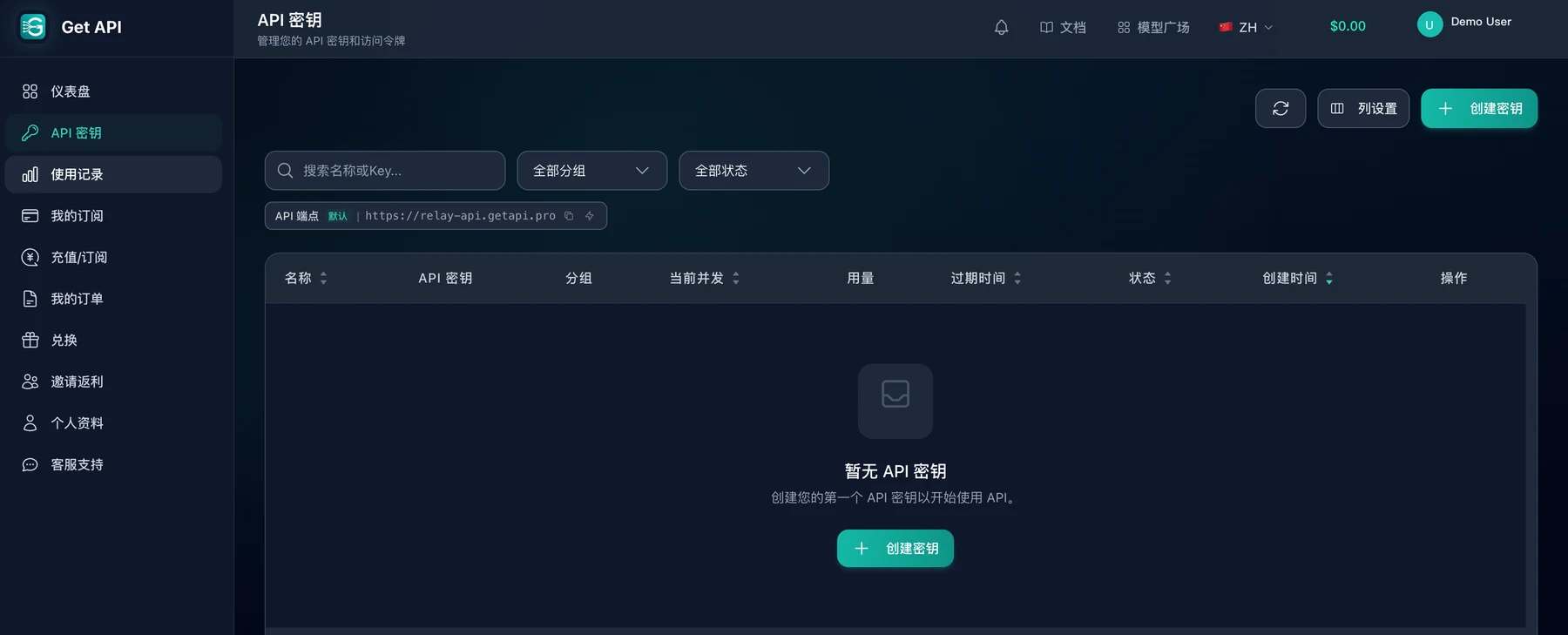
In the getapi.pro console, open API Keys from the left sidebar. The page also displays the current API endpoint, which is useful later when configuring Agents.
Create an API Key
- Select “Create key” or the empty-state create button.
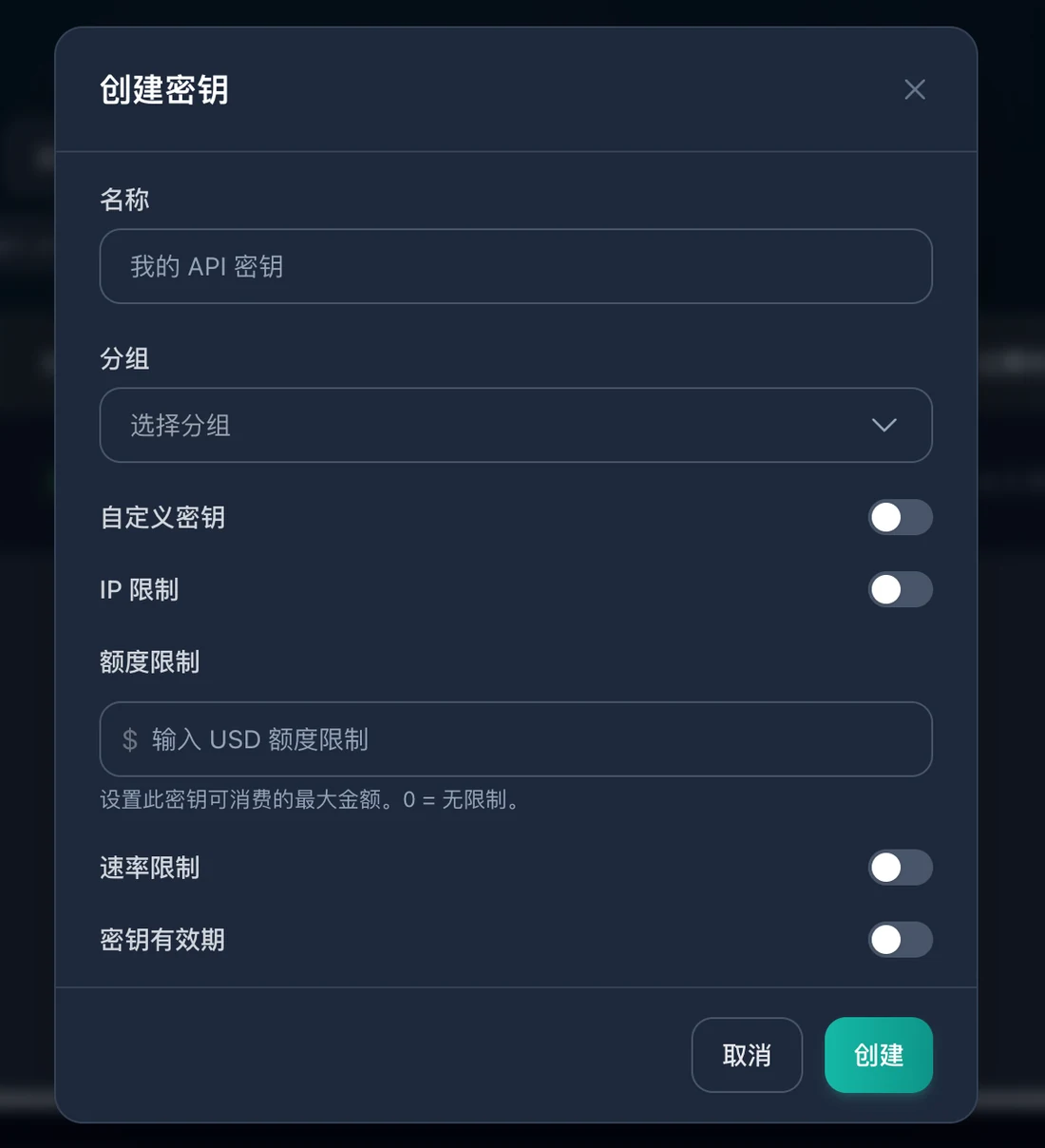
- Enter a recognizable name for the key.
- Select the group that should provide the models and quota for this key.
- Optional: enable custom key, IP restriction, quota limit, rate limit, or key validity period.
- Select “Create”.
After the key is created
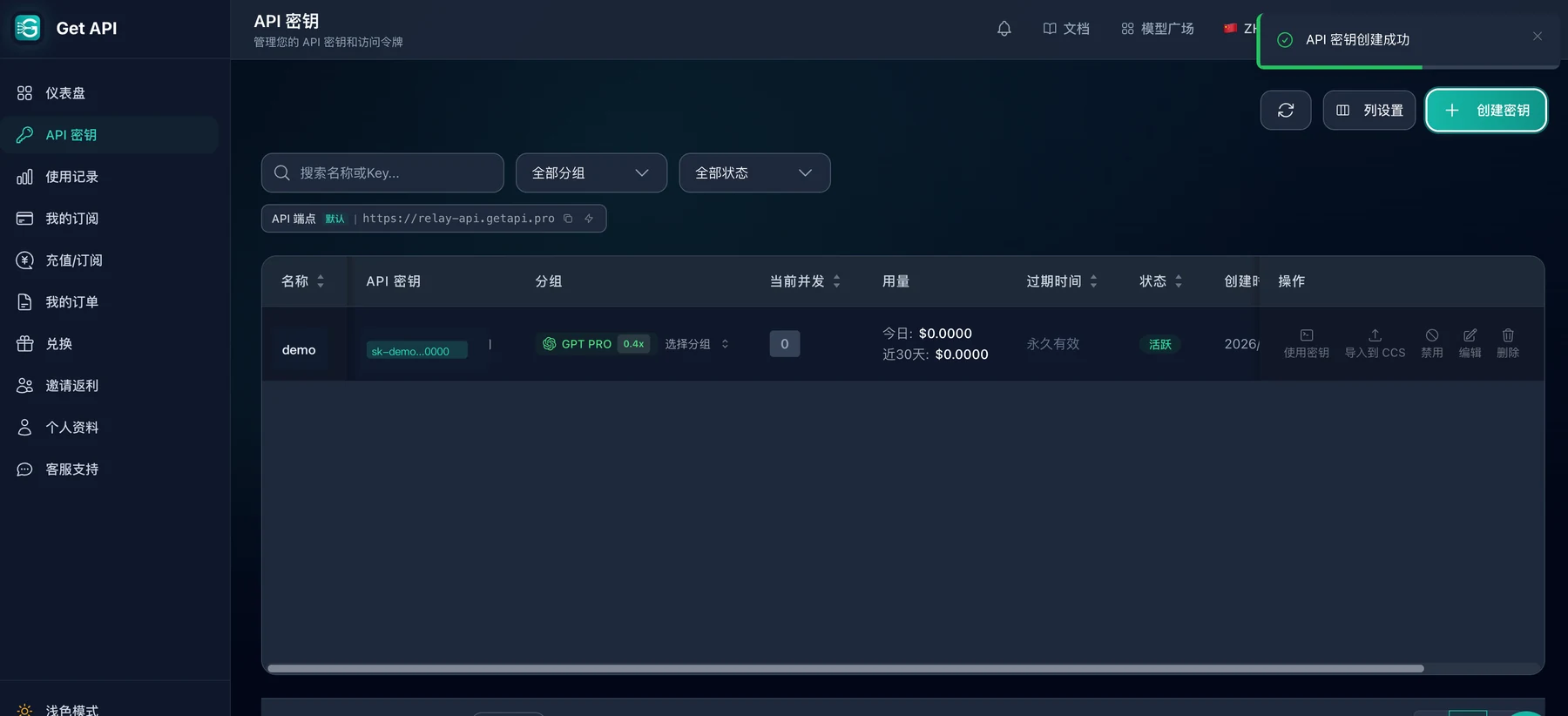
After creation succeeds, return to the API Keys list. The key row will show its name, masked key, group, status, and actions. getapi.pro keeps the key available in the list, so you can copy or manage it later instead of relying on a one-time display.
Agent configuration address
When configuring an Agent, keep the getapi.pro API Key and API address together:
API address: https://relay-api.getapi.pro
Codex / CC Switch Base URL: https://relay-api.getapi.pro/v1
API Key: Copy from the getapi.pro API Keys list
Do not mix keys and addresses across services. For Codex and CC Switch, use the Base URL ending in /v1. Other tools may use the service address directly; follow the tool-specific guide.
Security tips
Do not put API Keys in frontend code, public repositories, public documents, screenshots, or screen recordings. If you share screenshots for troubleshooting, hide the key, account, and balance first.
Next step
After the key is ready, use this API address and key in the Agent or tool-specific configuration guide.