
Codex/ChatGPT
We recommend using CC Switch to manage Codex/ChatGPT provider configuration. Save getapi.one and getapi.pro as separate providers, then switch between services or models without rewriting keys by hand.
TIP
Recommended path: install CC Switch first, prepare the Codex/ChatGPT client you want to use, then add GetAPI as an OpenAI-compatible provider.
This guide uses the name Codex/ChatGPT for the current Codex-related client experience and related ChatGPT desktop workflows.
Download clients
CC Switch
Use the CDN package first. If your system needs a different build, use the CC Switch releases page as the fallback.
| Client | System / scenario | CDN download | Fallback |
|---|---|---|---|
| CC Switch | macOS | Download | GitHub Releases |
| CC Switch | Windows | Download | GitHub Releases |
| CC Switch | More versions | — | GitHub Releases |
Codex/ChatGPT
Use ChatGPT desktop app for the current desktop experience. If you need the standalone Codex client, use the matching package below; Intel Mac users can also download the corresponding build from OpenAI Codex releases.
| Client | System / scenario | Recommended download | Official / backup |
|---|---|---|---|
| ChatGPT desktop app | macOS / Windows / Linux | Official download | Docs |
| Codex client | macOS Apple Silicon | Download | GitHub Releases |
| Codex client | macOS Intel | Download | GitHub Releases |
| Codex client | Windows | Download | GitHub Releases |
| Codex IDE extension | VS Code / Cursor / Windsurf / JetBrains | Docs | Docs |
For terminal usage, read the separate Codex CLI setup guide.
Before you start
- Install CC Switch.
- Install ChatGPT desktop app, Codex client, or the IDE extension you plan to use.
- Complete GetAPI sign-up and login. If you have not done that yet, start from the sign-up and login overview.
- Apply for a GetAPI API Key. If you have not created one yet, read the API Key overview.
- Confirm which service you want to use: getapi.one or getapi.pro.
- Confirm the model name you want to use.
Choose a GetAPI service
Keep the API Key and Base URL from the same service. For Codex and CC Switch, the Base URL must include /v1. Do not mix getapi.one keys with the getapi.pro relay address, or the other way around.
| Service | Codex Base URL | API Key source | API Key guide |
|---|---|---|---|
| getapi.one | https://www.getapi.one/v1 | getapi.one API Keys | API Key guide |
| getapi.pro | https://relay-api.getapi.pro/v1 | getapi.pro API Keys | API Key guide |
Configure with CC Switch
1. Open CC Switch
Launch CC Switch first and prepare to enter the Codex provider configuration area.
2. Open the Codex provider tab
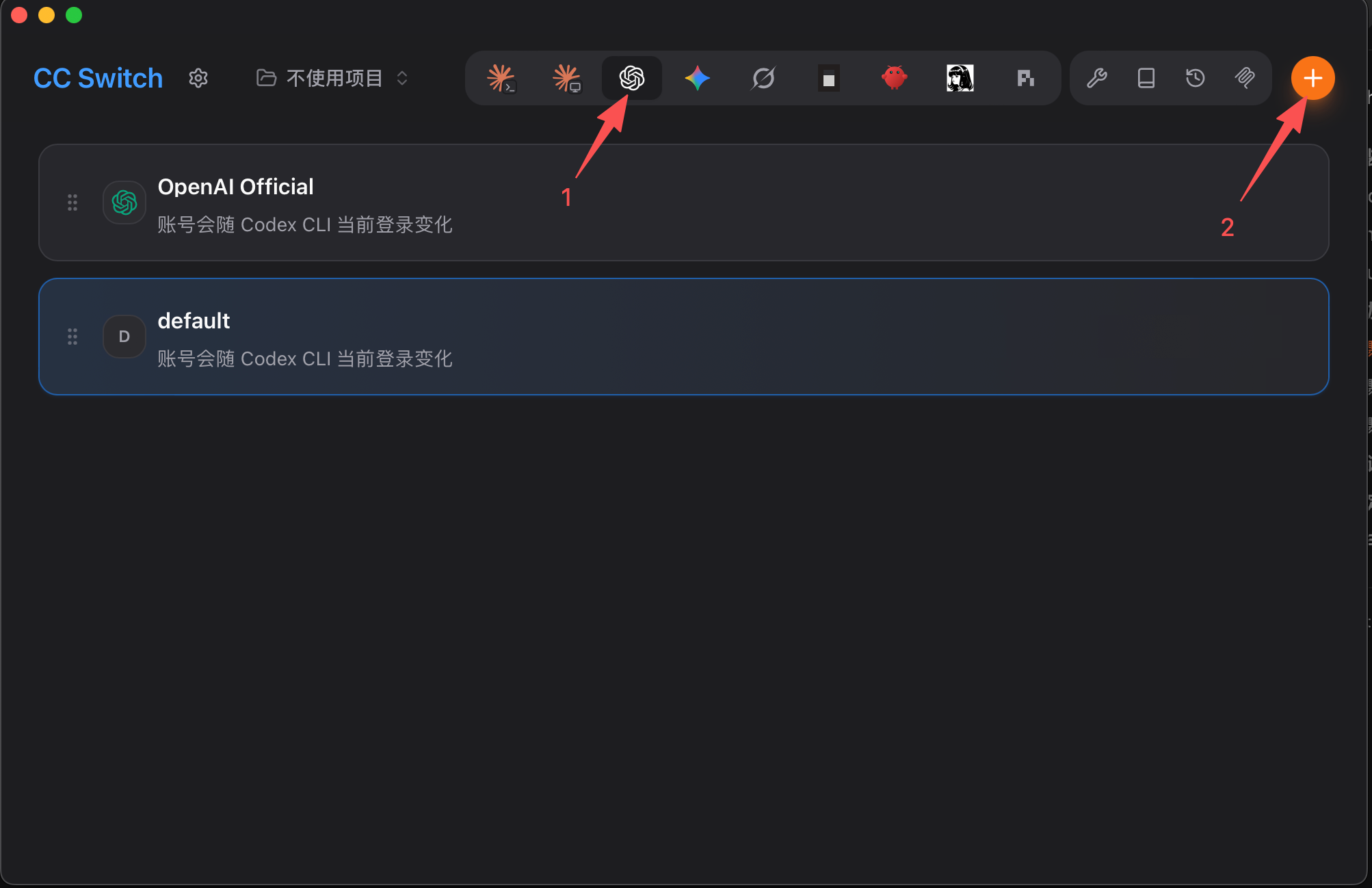
In CC Switch, select the Codex provider tab, then click the plus button to add a new provider.
3. Choose custom configuration
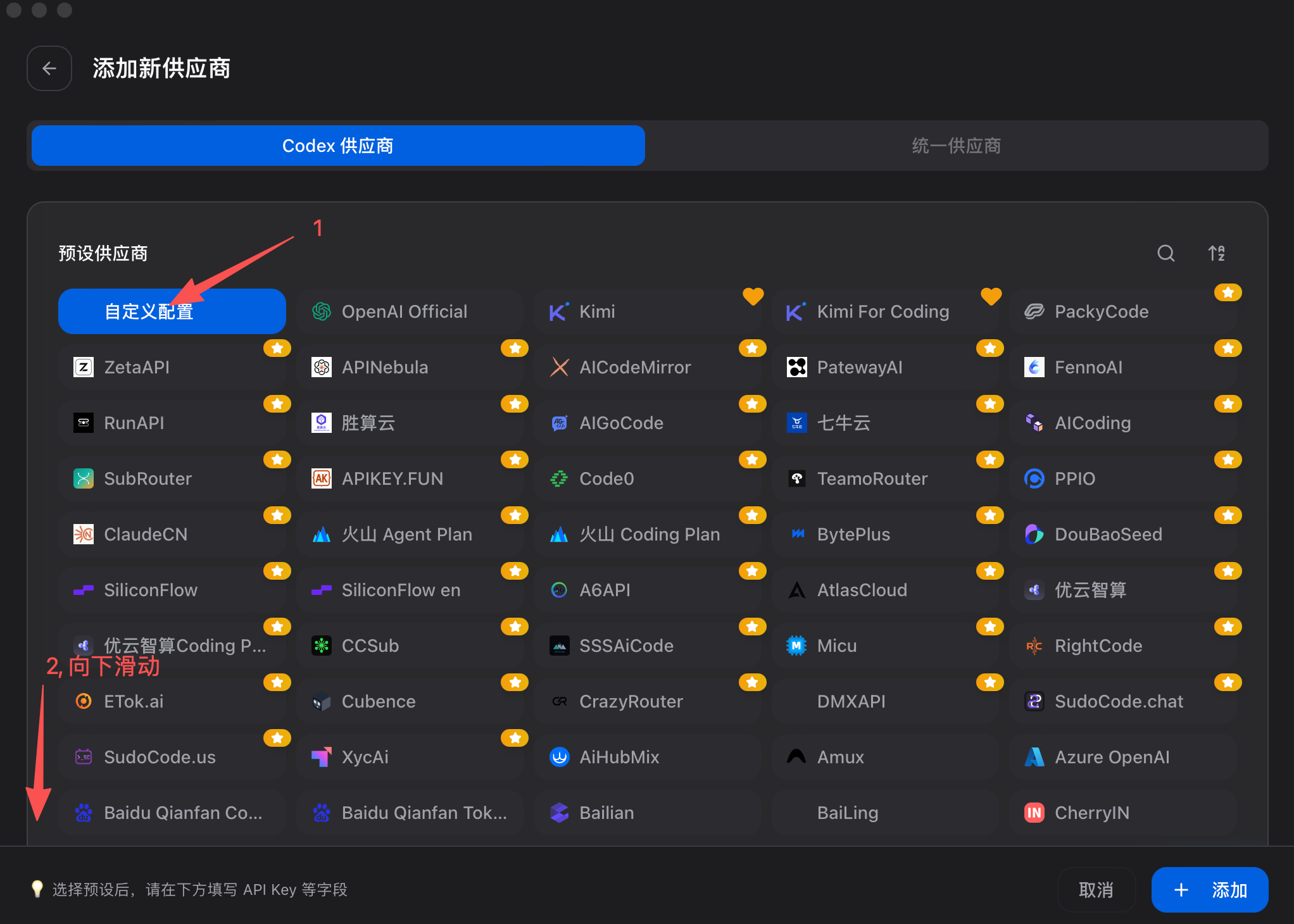
On the add provider page, select custom configuration, then scroll down if you need to find it.
4. Fill in the GetAPI provider
Enter a provider name, paste the matching API Key, and fill in the API request address with /v1, such as https://relay-api.getapi.pro/v1.
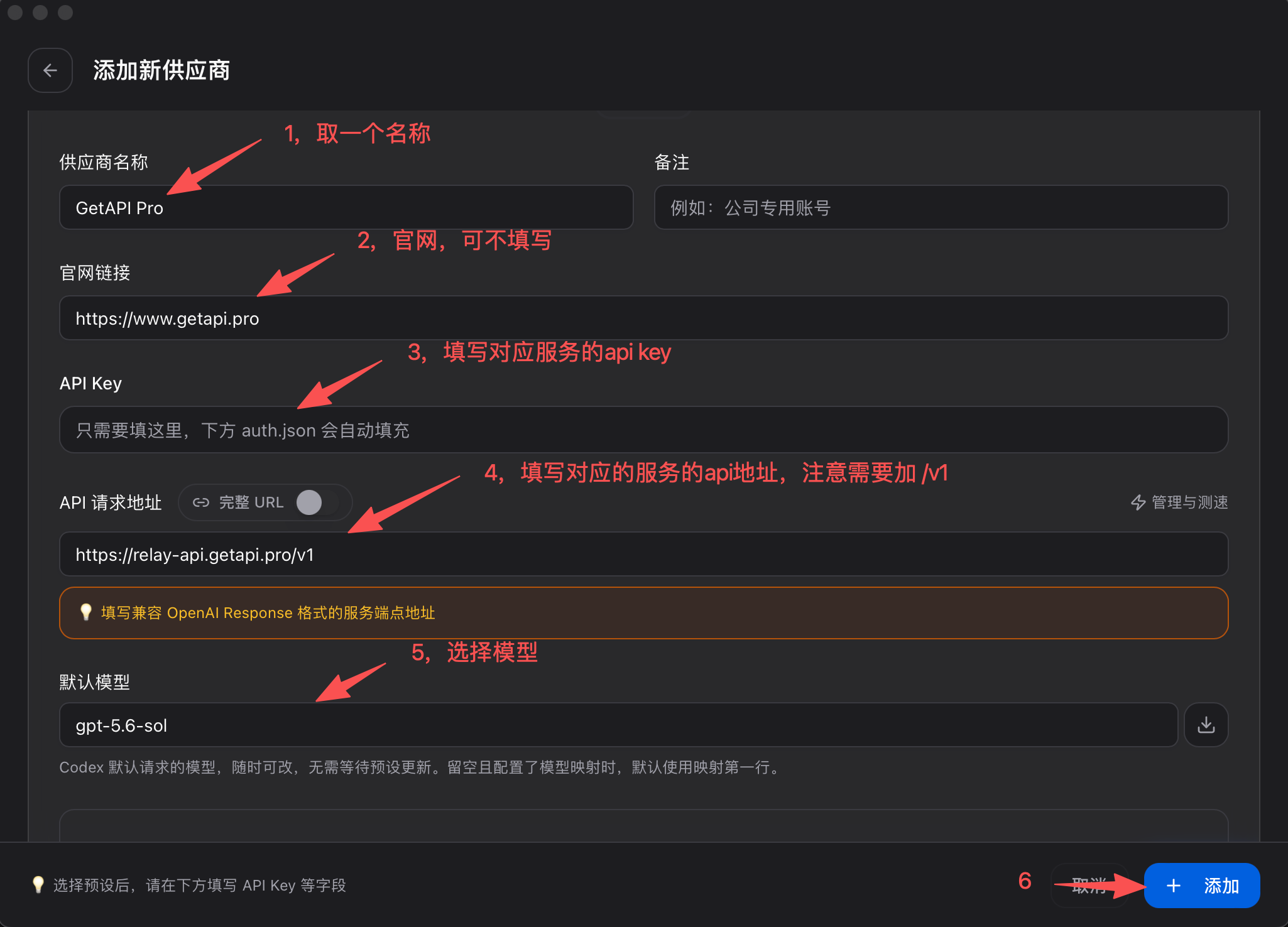
| Configuration item | getapi.pro | getapi.one | Notes |
|---|---|---|---|
| Provider name | GetAPI Pro | GetAPI One | Custom name for recognition. |
| Official website | https://www.getapi.pro | https://www.getapi.one | Provider website. This field can be left blank if CC Switch does not require it. |
| API Key | getapi.pro API Key | getapi.one API Key | Copy the key from the matching service. Do not mix keys and addresses across services. |
| API request address | https://relay-api.getapi.pro/v1 | https://www.getapi.one/v1 | Must include /v1. |
| Default model | For example, gpt-5.6-sol | For example, gpt-5.6-sol | Use a model enabled in the matching GetAPI console. |
5. Enable the provider
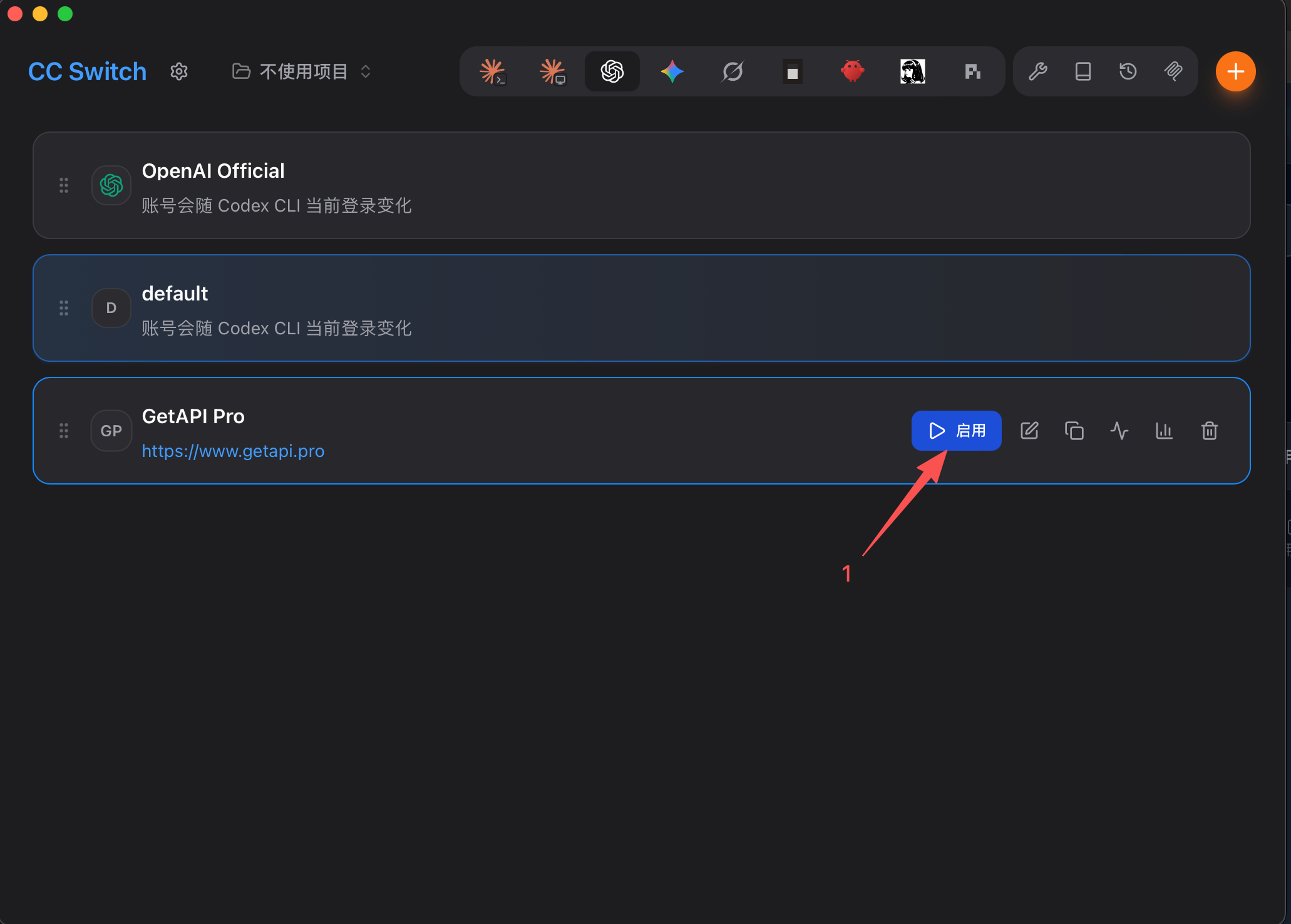
After saving, return to the provider list and enable the GetAPI provider you just added.
Verify the connection
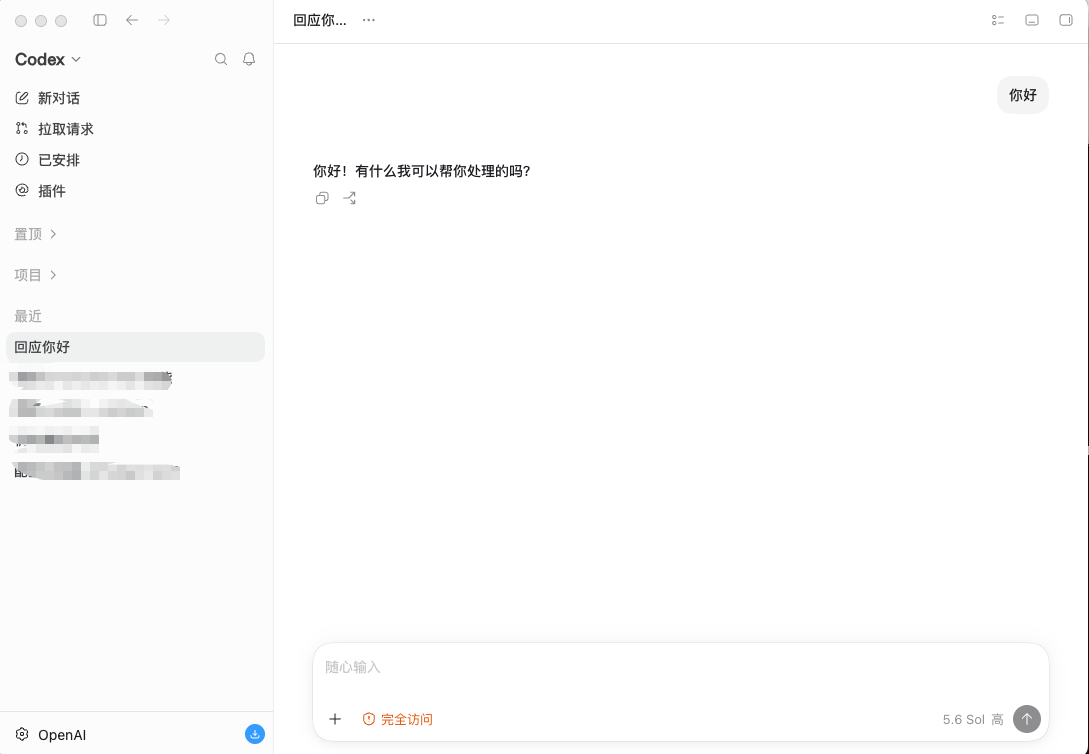
1. Verify in Codex/ChatGPT
Open Codex/ChatGPT and send a short message. If the model responds normally, the provider is available.
Common issues
| Problem | Possible reason |
|---|---|
| 401 / Unauthorized | The API Key is incorrect, disabled, or does not match the selected service address. |
| 404 / Not Found | The Base URL is wrong, missing /v1, or the client appended an incompatible path. |
| Model not found | The model name is incorrect, or the selected group does not enable that model. |
| No response or timeout | Balance, quota, rate limit, network, or service availability issue. |
Security tips
Never put API Keys in public screenshots, public repositories, frontend code, or shared documents. Hide keys, account information, and balance before sharing a screenshot for troubleshooting.
References
OpenAI official documentation provides the ChatGPT app, Codex CLI, and Codex IDE extension references. The CDN download links above are project-provided mirrors.